

10 Proven Strategies to Market a New Website and Promote Your Services
Choosing SEO Companies That Understand Modern Search
Wondering if Squarespace provides a strong foundation for SEO? There are practical ways to increase your website’s visibility in search engines, including understanding Squarespace SEO best practices and placing relevant keywords where they can have the most impact.
Search Engine Optimization covers an enormous range of topics, so it makes sense to explore it through smaller, easier-to-manage sections rather than tackling everything at once.
More upcoming content will cover:
- A step-by-step tutorial on optimizing website images
- (smaller file sizes = faster load times)
- The types of website pages that offer significant SEO opportunities
- Why maintaining a blog can be beneficial for SEO
- Social Media & SEO, with an emphasis on Pinterest
- Helpful Tools & Resources
Here’s the honest truth: I’m not an SEO expert and I don’t claim to be one. When I launched my website in 2015, SEO was completely unfamiliar to me. I didn’t know what Search Engine Optimization was, nor did I realize how important it could be for creating a successful website.
Hiring an SEO expert wasn’t financially possible for me at that time. So instead, I began teaching myself and focused on learning everything I could about SEO and how to put those strategies into practice on my own website.
The work eventually started producing results. Google now ranks me at the top of page 1 for several of my keywords, and I’m now sharing the knowledge and lessons I’ve gained so that you can apply them to your own website.
You may have heard the rumor that Squarespace isn’t good for SEO. From my own experience, that bad-SEO reputation is NOT true. During most of the time I’ve operated this business, 90% or more of my leads and clients have found me through Google searches. I’ve had NO trouble attracting clients and leads through search, and the results have continued to improve every year!
There is also support for this beyond my own results. I’ve heard SEO experts describe Squarespace SEO as good, while noting that its SEO capabilities continue to become better each year.
SEO management does come with its challenges, though. No matter which website builder you use, working through SEO tasks can easily become a rabbit hole of tedious, repetitive work.
The basics are what matter most. You don’t necessarily need all the SEO tools that WordPress users often “throw in our faces.” By learning the fundamentals, knowing what needs to be optimized, and paying extra attention to the important areas of your website, you can take care of the essentials yourself.
Tools such as Yoast can certainly make that process easier. Their main purpose is to remind you about the various SEO steps that need to be completed. In that sense, they’re essentially a checklist—and there’s no reason you can’t create your own checklist instead.
For people who prefer a DIY SEO approach but want some additional assistance, there are tools available. Paying an SEO professional can be difficult to navigate, and experienced professionals can be expensive. For that reason, SEOSpace* is definitely worth trying for DIY SEO.
SEOSpace has been referred to as ‘the Yoast for Squarespace.’ Introduced in 2023, the Chrome extension offers both free and paid plans. It also includes tons of free workshops PACKED with seriously helpful information, without a sales pitch, along with a private community and many additional resources.
For Squarespace users, SEOSpace is the best game in town because it has been specifically designed to work (only) with Squarespace.
For traditional DIY-ers, the question then becomes: what are the best ways to implement SEO on a Squarespace website?
Even if you choose not to use SEOSpace* (& I highly recommend that you should), you can still follow a range of general SEO best practices when working on a Squarespace site.
Keep in mind, however, that SEO recommendations and rules of thumb can change over time. As a result, this post may not always reflect the most current SEO practices. A resource specifically focused on SEO, such as SEOSpace*, may provide more up-to-date guidance as SEO practices continue to evolve.
Table of Contents
🔎 What Exactly Are Keywords?
Before you start optimizing your website, it’s important to know that keyword research isn’t the same for every type of business. The keywords you need can vary depending on whether you operate a local business, an online business, or a business that combines both.
📍 Local Keywords
If your goal is to appear in Google searches related to the location of your physical business, your website should clearly communicate which areas you serve.
You can target locations at different levels of specificity. For example, your keywords might refer to a broad area such as California, a more specific region like The Bay Area, or an individual city such as San Francisco.
Including relevant location-based keywords throughout your website helps Google understand where your business operates and which local searches may be relevant to you.
🎯 Niche Keywords
Your website should also contain keywords that accurately describe the niche your business operates in. However, there’s an important detail to remember: use the terminology that your CLIENT or CUSTOMER would actually search for.
Put yourself in their position. If they didn’t know the professional terminology you use, what words would THEY type into Google when looking for your services?
That perspective can help you discover much more useful niche keywords.
📝 Long-Tail vs. Short-Tail Keywords
Another important distinction is between long-tail keywords and short-tail keywords.
Long-tail keywords are usually natural-sounding phrases made up of around 3–4 words. They tend to be more specific and closely describe the particular service or product you offer.
- For example, one long-tail keyword I’m highly ranked for is “Squarespace design Tallahassee.”
Because long-tail phrases are more specific, they can often be easier to target than extremely broad search terms.
Short-tail keywords, on the other hand, are generally only 1–2 words long. Since they are broader and less specific, there is usually much more competition surrounding them, making them considerably harder to rank for.
- Good Example: someone searching Google for just my name, “Katelyn Dekle.”
- Bad Example: “graphic designer”
- I don’t rank highly for such a broad keyword because there are literally 689,000,000+ results for that keyword search.
📚 Your Keyword Research Homework
Now that you understand how local, niche, long-tail, and short-tail keywords differ, it’s time to put that knowledge into practice.
Before getting started, download the Keywords Everywhere extension or use the Ubersuggest Chrome extension for free. Neither are affiliate links!
The extension itself is free to download. However, if you want to make full use of it, I’d recommend purchasing 100,000 credits for $10 to get started.
The system uses 1 credit per keyword in your Google searches. It can then show you related keywords and information about how those keywords rank directly within the Google search window.
Here’s how the tools explain their features:
🆓 Free (Ubersuggest): You can see a widget on the right hand side of google.com showing Related keywords and People also search for keywords. However, you’ll have limited results, as well as limits on the number of searches you can perform per day through their website, which you can access through the link in their search widget from the extension.
💳 Paid (Keywords Everywhere): You can view monthly search volume, cost per click, and competition data for keywords across multiple websites, including Google Analytics and Google Search Console, along with your list of keywords. You can also find volume data for your own keywords by copying keywords directly from Excel into the Import Keywords tool and downloading the results as an Excel, CSV, or PDF file.
Once you have one of these tools available, start researching keywords that are relevant to your business and services. Pay attention not only to whether a keyword makes sense for your website, but also to how much competition each keyword has.
📋 Build a large list of keywords that you have a realistic chance of ranking for. Look especially for terms with lower competition — for example, a keyword receiving 10,000 hits compared with one receiving 8,000,000 hits may provide a more achievable opportunity.
Write down your keyword list somewhere so you can refer back to it while optimizing your website and creating content.
⚠️ Important: Remember to disable Keywords Everywhere whenever you DON’T want to spend credits during your regular Google searches!
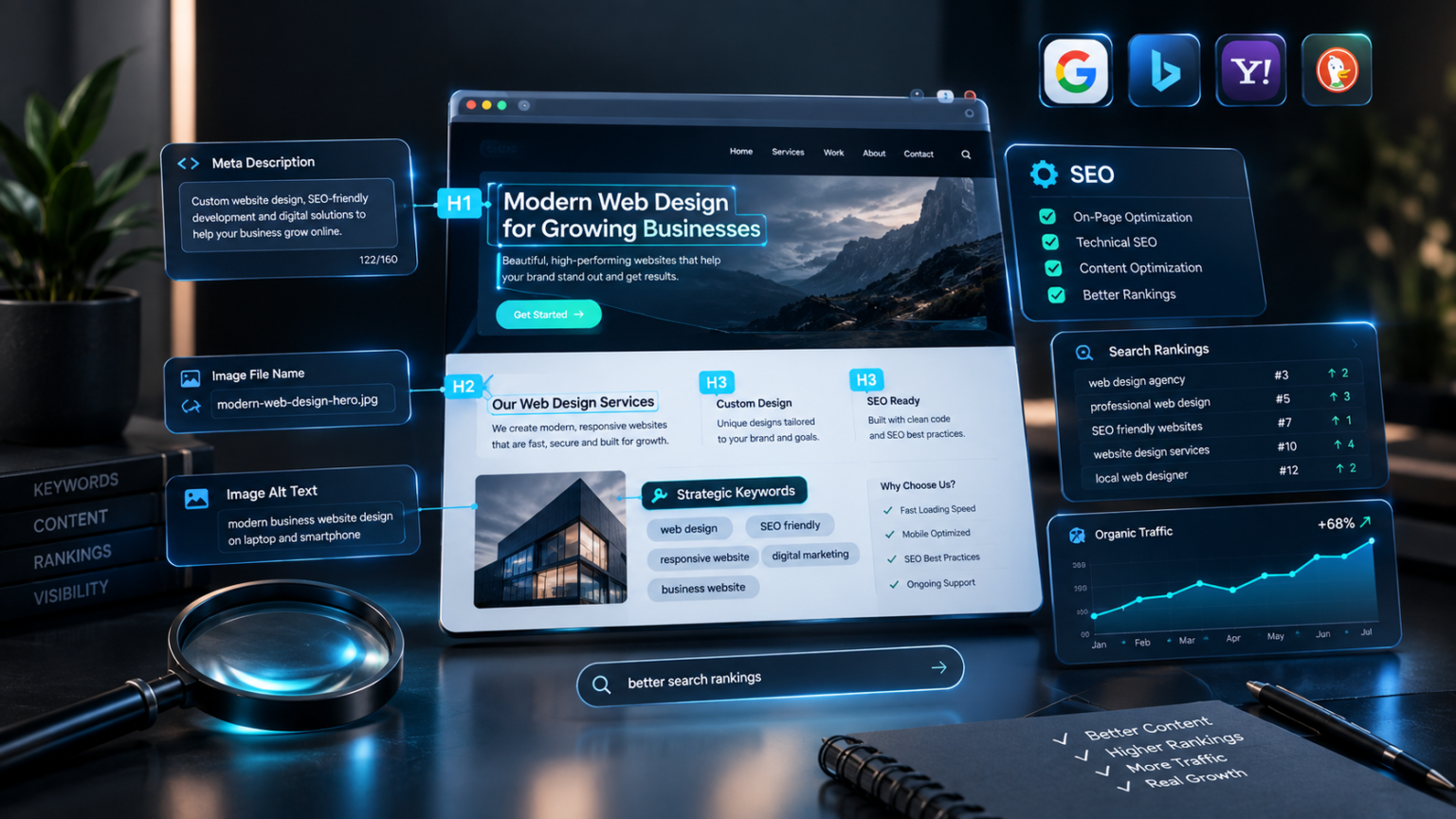
🔑 Critical SEO Keyword Opportunities
➡️ Headings & Paragraphs
7.0 → H1, H2, and H3 tags
7.1 → H1, H2, H3, H4, P1, P2, and P3 tags
One of the easiest ways to work keywords into a Squarespace website is through your headings and paragraphs. Squarespace makes these elements easy to identify because each page gives you font choices for Heading 1 (H1), Heading 2 (H2), Heading 3 (H3) and, for 7.1, Heading (H4), Paragraph 1 (P1), Paragraph (P2), and Paragraph (P3).
Use your most relevant keywords within these elements, but make sure they fit naturally rather than forcing them into every heading.
The content hierarchy is important as well. Organize your headings according to their importance: use H1 for your primary title and most important keywords, H2 for topics of medium importance, and H3 for supporting or less-important sections whenever possible.
There’s another detail to keep in mind when setting up your headings. Your H1 should be your largest font style, H2 should sit in the middle, and H3 should be the smallest on 7.0. For 7.1, H4 should be the smallest heading style.
This creates a clear visual structure for visitors while also helping Google understand the hierarchy of your content. Search engines can use the order of your H-tags to determine which headings carry more importance.
For instance, if your current H3 style is visually the largest and attracts the most attention, switch it with the H1 style. You want Google to recognize the correct structure when it crawls your website. (Using an H3 tag as the main title at the very top of a page, for example, can confuse Google about your page hierarchy.)
Try not to turn your heading titles into full paragraphs. Whenever possible, keep headings concise, clear, and easy to understand.
- DON’T = What I’ve learned in the last 3 years about doing my own SEO work on Squarespace
- DO = Squarespace SEO Best Practices
The second example is straightforward rather than mysterious or unnecessarily long. It also contains relevant keywords that fit naturally into the Heading 1 style.
Someone searching Google for “Squarespace SEO” or “SEO best practices” will probably/eventually find my blog post.
💡 RECOMMENDATION:
Try not to have more than three H1 tags or Heading 1 titles on a single page. Then use H2 and H3 headings appropriately throughout the page to create a logical content structure.
Besides helping organize your SEO, headings also break up large sections of text and make your content more enjoyable to read. 🙌🏻 Win-win!
➡️ Meta Descriptions
In Squarespace, Meta Descriptions are also referred to as Site Descriptions. These descriptions appear on the Search Engine Results Page (SERP) underneath the title assigned to your page.
Your Meta Description can naturally include relevant keywords, and it’s also a useful place to add a Call To Action (CTA).
Example of a Google search listing for one of my popular posts.
The screenshot represents my Google SERP listing for the search terms “trello for graphic designers.” The listing contains several different elements: the title appears in blue and is hyphened with the site title, which also includes some keywords; the link appears in green; the publication date is shown in lighter grey; and the Meta Description appears underneath in dark grey.
You’ll notice that Google only displays a small amount of the description. Usually, the viewer sees approximately 120–160 characters, so there’s no need to write a long description. Keep it concise and focus on the information you most want potential visitors to see.
A useful way to think about your Meta Description is as an elevator pitch for the page.
There’s another Squarespace-specific detail when it comes to blog posts. You may have noticed that my example uses an excerpt from the beginning of the blog content as its meta description. That’s because Squarespace blog posts don’t really provide a separate Site Description field. Instead, they use an excerpt, which you can complete from the Options tab within that individual post’s settings.
For Squarespace blog posts, a good practice is to place the strongest keywords that naturally describe your content within the first one or two sentences of the post. This gives those keywords a better chance of appearing in the Meta Description displayed on the SERP.
(In other words: don’t do what I did in that example! 😂)*
Your Meta Description or Site Description can also be used when someone shares a page from your website on social media. This means that the same text may appear when someone shares your page on platforms such as Pinterest or Facebook.
One important point: there is some debate about how important this particular element is for SEO. However, completing these fields doesn’t hurt, so I’d recommend filling them out.
💡 RECOMMENDATION:
Don’t treat your Meta Description like a place to write an entire novel. Keep the copy short and think of it more like ad copy or teaser text that encourages someone to click.
➡️ Images
Add alternate text to ALL of your images. This is an SEO step that is frequently forgotten, but when you apply it consistently, it can provide significant SEO value.
Almost every image on my website includes alternate text. Another approach I use is creating an SEO-friendly file name before uploading the image to Squarespace. When I save an image to my computer, I give it a descriptive name that relates to what the image contains.
For example:
- S1862_DescribeWhatTheImageIs.jpg/.png
The simplest way to understand good image naming is to briefly describe exactly what the image shows.
- DON’T = IMG8756_edit1.JPG
- DON’T = HomePageBanner_web.jpg
- DO = S1862_SquarespaceSEOBestPractices_Part1-UsingKeywords.jpg
- DO = S1862_KatelynDeklePhoto_BusinessOwner.png
Notice the difference between the examples. A useful image file name tells Google what the image actually represents, which helps Google categorize the image and potentially rank that image or link for relevant keywords.
For example, if you search Google Images for “7 ways to use Trello,” my blog post thumbnail will likely appear in the top row because I named the image in a way that matches the title of that post.
⚠️ RECOMMENDATION:
DO NOT keyword stuff your alt text. The same applies to Meta Descriptions and your H1, H2, and H3 tags. Google can recognize keyword stuffing, and doing it can hurt your rankings by causing Google to keep your page ranking low.
🔑 Keyword Terms
Understanding the different types of keyword terms makes it easier to choose phrases that match your business, location, services, and content.
- Local = words or phrases that make it easier for people to discover your business in a particular location
- city, state, &/or region
- Niche = keywords that identify the kind of business or products you offer
- squarespace design
- Both = a combination of Local & Niche keywords that creates a more targeted search phrase
- squarespace design Tallahassee
- Long tail = a specific 3-4 word phrase that closely relates to your offer, business, or niche
- Trello for graphic designers
- Short tail = a broader 1-2 word keyword that is considerably more difficult to rank for
- Katelyn Dekle
- graphic designer
❷ Use Heading Titles as Keyword Opportunities
Your headings can play an important role in your SEO strategy. Whenever it makes sense, include keywords that sound natural when spoken and arrange your headings in a strategic, chronological order throughout the page.
❸ Meta Descriptions Are Another SEO Opportunity
A well-written Meta Description can give Google additional context about the content of your page. It can also help visitors understand what they’ll find there and decide whether the page is worth clicking.
❹ Don’t Overlook Your Image File Names! 🖼️
Image names matter too. Give your images descriptive file names that include relevant keywords where appropriate, so those images have a better chance of being discovered in search. Every little bit helps!
💡 TIP: Save yourself time later by thinking about SEO when you first create and save an image. Give the file an appropriate, descriptive name at that stage instead of waiting until you upload it to Squarespace and having to rename it afterward.
😌 Don’t Let SEO Become Overwhelming!
If your website contains a large amount of existing content that needs to be updated, you don’t have to change everything at once. Set aside just a few minutes each day or each week and gradually work your way through it.
If you have a team member available, you can also ask them to help you work through the updates and tackle the content together.
That’s everything for now! The next topic will focus on optimizing website images, including why using smaller file sizes can result in faster load times. 🙌🏻
📚 Remember Your Homework!
- A) Download the Keywords Everywhere or Ubersuggest extension for Chrome/Firefox. Use the tool to research keywords that are relevant to your business and determine how much competition there is for each one.
(Not an affiliate link!)
Keywords Everywhere provides many of the basic functions available through Google’s Keyword Planner when you purchase ads. The difference is that it displays the information immediately within your Google search, using a couple of pop-ups, so you can see the keyword data while you’re searching.

7 Best Website Builders in New York: WordPress—Best for Bloggers, Developers, and Maximum Flexibility
Read More »